> For the complete documentation index, see [llms.txt](https://docs.lummi.ai/llms.txt). Markdown versions of documentation pages are available by appending `.md` to page URLs; this page is available as [Markdown](https://docs.lummi.ai/about-lummi/advanced-features/create.md).
# Create
## With Lummi’s AI image and video generation tools, you have the power to create your own visuals.
Create a new image or video from a prompt, or use an existing image as a reference.
You can find your new AI image generations in your **Image** and **Video** tabs where you’ll be able to further customize your visuals. You can view your creations by selecting your user icon in the top right and navigating to **My images** or **My videos**.
## Create from Prompt
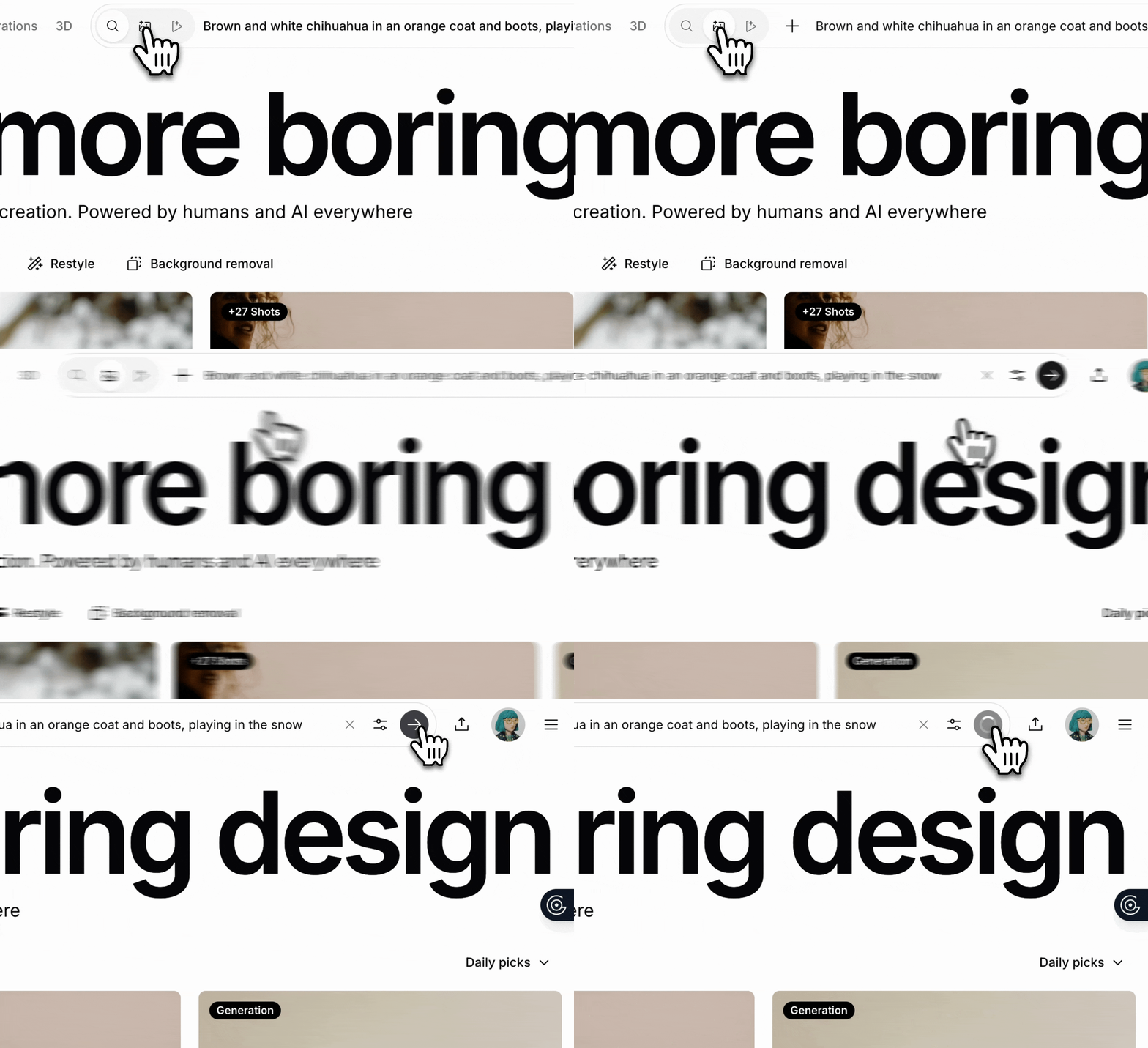
To access Lummi's creation tools, simply activate **prompt mode** in the search bar at the top by selecting the image or video icon. Then, type in your prompt.
You can specify everything in your prompt, or you can use the following shortcuts for quick customization by selecting the options menu.
### **Image options:**
* **Image type:** Photo, illustration, or 3D render
* **Aspect ratio:** Tall, square, or wide
* **Type of shot:** Close-up, medium shot, wide shot, aerial view, low angle, or high angle
* **Trend:** Select from popular predefined aesthetics that influence the overall look and feel of the generated image
{% hint style="info" %}
Want to generate multiple images at once? Just specify in the prompt! Generate up to 3 images at once from the same prompt.
{% endhint %}
### **Video options:**
* **Aspect ratio:** Wide, story or auto-size
* **Length:** 4, 6, or 8 seconds
* **Audio:** On or off
### Prompt Engineering for Lummi
#### Get creative. It's your time to shine!
This is where you can be more creative with your prompts. Describe your vision with as many details as you can to get the best results — as long as you take care not to get too abstract or too wordy. Keep reading for a quick example. 👇
#### ❌ **Weak Prompt 1**
> *person working at a desk*
**Why it's weak:**
* Very generic.
* Lacks visual cues (age, appearance, setting).
* Doesn’t clarify style (realistic, cartoon, editorial?).
* No mood, camera angle, or environment.
#### ❌ **Weak Prompt 2**
> *A visionary individual immersed in the fluid symphony of modern creativity, where the boundaries of form and function blur into a transcendental workspace—imbued with the essence of innovation, light, and silent ambition, as sunlight becomes metaphor and technology becomes muse.*
**Why it's weak:**
* **Too poetic**: It sounds nice, but AI models don’t understand metaphor the way humans do.
* **No clear visual instructions**: “Fluid symphony,” “silent ambition,” or “technology as muse” don’t help the AI form a concrete image.
* **Misses key details**: We don’t know what the person looks like, what the setting is, or even if it’s indoors or outdoors.
* **Hard to control results**: This kind of abstract prompt often leads to generic, weird, or unrelated images.
{% hint style="info" %}
A weaker prompt doesn't necessarily mean a poor image — Lummi optimizes prompts to provide high quality images each time — but it might not meet your expectations or needs. **Remember: you're the creative director!**
{% endhint %}
#### ✅ **Strong Prompt**
> *A stylish young Asian woman in her 20s, wearing a minimalist white blouse and round glasses, focused on her sleek silver laptop at a modern wooden desk in a bright studio apartment with large windows and natural daylight. Scandinavian interior design, soft neutral colors, shallow depth of field, realistic photo style, 35mm lens perspective*
**Why it's strong:**
* **Character detail**: age, ethnicity, outfit, accessories.
* **Scene detail**: modern desk, bright studio, Scandinavian decor.
* **Lighting and mood**: natural daylight, soft neutrals.
* **Photographic cues**: shallow depth of field, 35mm lens, realistic photo style.
* **Not wordy:** provides necessary details without going overboard with flowery descriptions or abstract feelings/themes.
#### Feeling stuck? Get inspired.
Browse the [Lummi featured feed](https://www.lummi.ai/) to get inspired, or take advantage of Lummi Create's shortcut features to help you build your vision.
## Create from Image
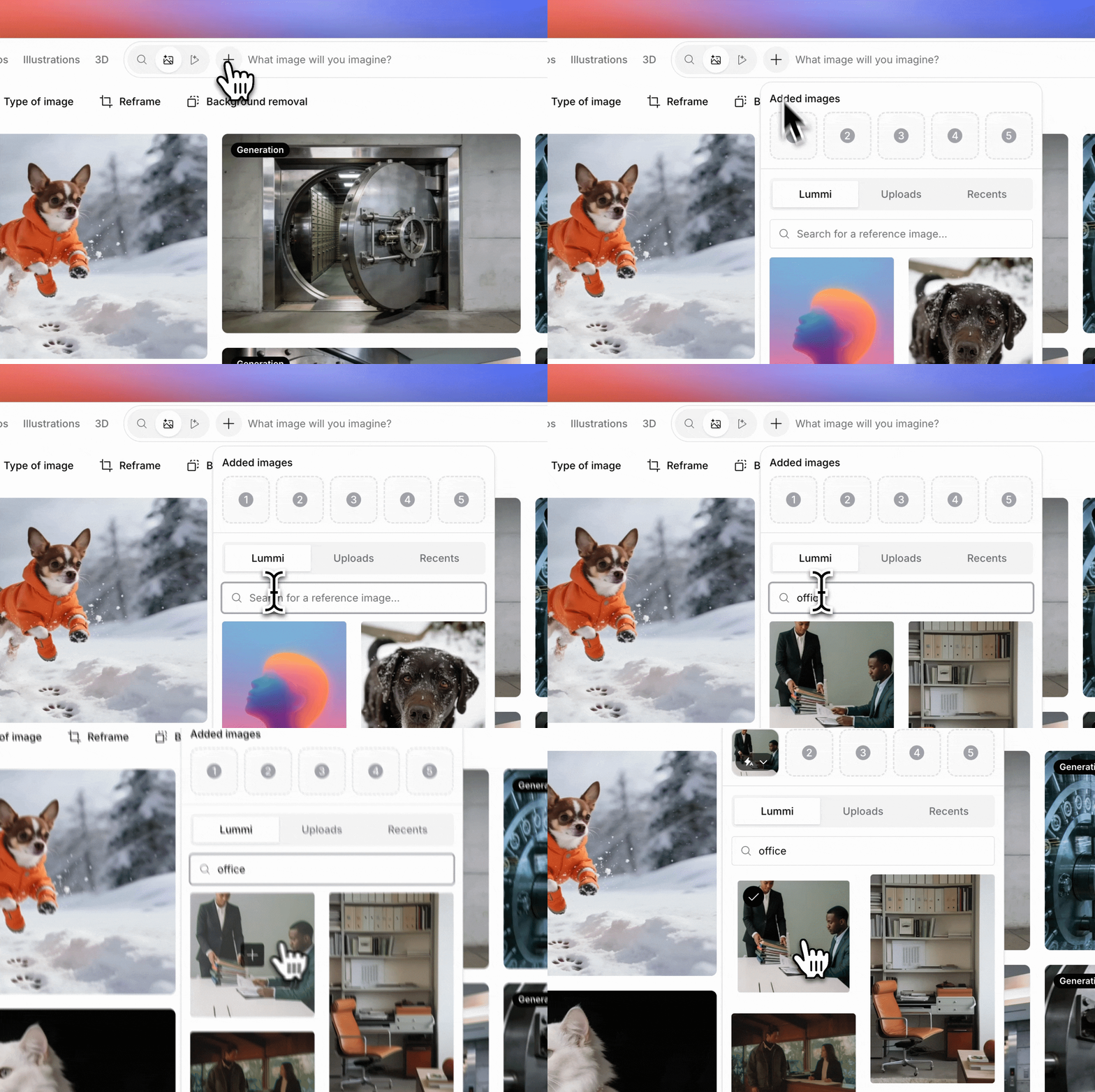
Want more options without straying too far from your favorite image? You can also use Lummi to create new images or videos using an existing image as a reference. Add subtle tweaks, like a different pose or new mood, with just a few clicks.
### About Create from Image:
* Choose from Lummi’s library with the **Use to create** option, search directly for an image while in **prompt mode** or **upload your own** **image** as the reference.
* You can either provide a prompt to customize the result or skip the prompt to create similar versions of the original image.
{% hint style="info" %}
When using an image reference **Image type** and **Trends** settings are disabled to ensure the reference image defines the style. But you can customize aspect ratio and type of shot.
{% endhint %}
### Create from Image Tips
#### Keep prompts short and sweet.
Create from image already extracts style elements, so don't overthink it. Keep your prompts short for the most consistent results — even one key word will do to change the subject or pose!
## Images and Videos Tabs
Every image or video you generate using Lummi's **Create** tools are saved here. You can access the **Images** or **Videos** tabs by viewing your Lummi profile. Here, you can manage your generations and even share your creations with the Lummi community by making them **discoverable**. Plus, you can edit your metadata to make your images easier for the community to find.
{% hint style="info" %}
Making an image **discoverable** means it'll appear in search results and be available for others to use. If the image doesn't meet Lummi's standards, our admins may hide it, but it will always remain accessible to you.
{% endhint %}